Image to Text
Stop retyping. Turn screenshots, receipts, and photos into text you can copy and edit.
Table mode works best with a cropped, straight-on image of a simple printed table. Review is required; merged cells and handwriting are not supported.
Or paste a screenshot with Ctrl+V / ⌘V. PNG, JPG, WebP, BMP. Up to 10 MB and 20 megapixels. Printed English text.
No account needed. Your image is processed on your device. The recognition engine downloads on first use. Powered by Tesseract.js (Apache 2.0). Open-source notices.
Review your table
1. Choose the number of columns. Move dividers into the gaps between columns, then Rebuild. Rebuilding replaces cell edits.
2. Correct the cells below. Use Join next for wrapped lines. Scroll sideways to see all columns on your phone.
Import or paste identifiers into cells formatted as Text to keep leading zeros. Formula-like values are prefixed with an apostrophe for safer spreadsheet import. Your original image and table stay on this device.
Screenshot to spreadsheet: a stock-list example
Have a stock list trapped in a screenshot? Turn it into editable cells, check the numbers, then download a CSV instead of retyping each row.
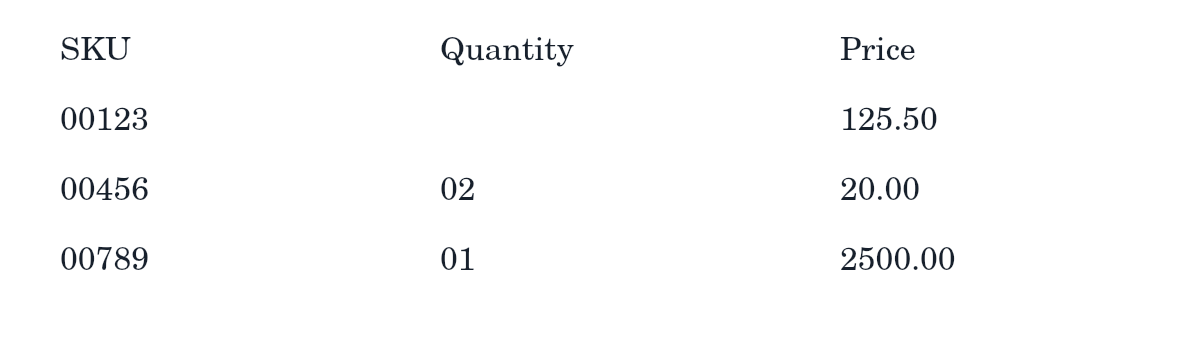
2. Review every cell against the original
| SKU | Quantity | Price |
|---|---|---|
| 00123 | 125.50 | |
| 00456 | 02 | 20.00 |
| 00789 | 01 | 2500.00 |
3. Choose three columns, correct any recognition or alignment errors, then tick the review box to export. The empty quantity above is intentionally blank. Our test of this image matched all 12 cells, including headers; your screenshots may need corrections.
Keep SKU codes intact: when opening the CSV in Excel, use Data → From Text/CSV and set identifier columns to Text. Double-clicking a CSV can remove leading zeros. Format destination cells as Text before pasting, too.
Keep codes, blanks and amounts correct in your spreadsheet
Check the imported sheet against the reviewed table before using it. CSV stores cell text, but your spreadsheet chooses how to interpret it.
- Codes and identifiers: import these columns as Text. In the stock example, SKU 00123 must still read 00123, not 123. Reimport the original CSV if zeros were removed; changing the format afterward cannot recover them.
- Amounts for calculations: choose the import language or locale that matches the source. For example, 125,50 and 125.50 use different decimal conventions. Check a known amount and a total before relying on calculations; importing every column as Text preserves spelling but does not make amounts numeric.
- Blank cells: keep the empty quantity beside SKU 00123 in its original column. When pasting, use an empty destination and check that existing values were not left in blank positions.
- Protective apostrophes: formula-like values receive a prefix for safer import. Some receiving apps show it as part of the text. Review it deliberately rather than removing prefixes from every cell.
Start with the expected stock-list CSV and compare your result with the table above. These checks do not replace reviewing the original screenshot.
The example button loads the original image into table mode. Click Extract text to run recognition on your device. Simple printed-English tables work best; merged cells, handwriting and complex layouts need another approach. No sign-up required.